Infrastructure and Network Monitoring

At 3am in the morning my first reaction to text messages, emails and phone calls about problems with client servers or networking issues is rarely one of appreciation. But that changes when the ability to react to minor concerns early, prevents embarrassing and major compensation repercussions later. I cannot imagine my world without monitoring.

My first crush was with Nagios Core. (See the feature banner at the top of this post – a screenshot from Nagios back in 2009). Thank you good ol’ Wikipedia for succinctly putting it:

Nagios /ˈnɑːɡiːoʊs/ is an open source computer system monitoring, network monitoring and infrastructure monitoring software application. – http://en.wikipedia.org/wiki/Nagios

The key selling factors for me was that it was open source, incredibly well documented, boasted more plugins than I could count, it was easy to write my own plugins in whatever language I preferred, and there were fantastic addons such as NRPE, NSClient++, pnp4nagios and CoffeeSaint to name a few of my favourites.

My faith in Nagios Core was unwavering, but I became frustrated in some of the limitations it came with. Simple improvements like bulk actions, API and extensions to the configuration files – but nothing changed. Infact, efforts seem to be directed into their paid enterprise options whereas I was only interested in open source.

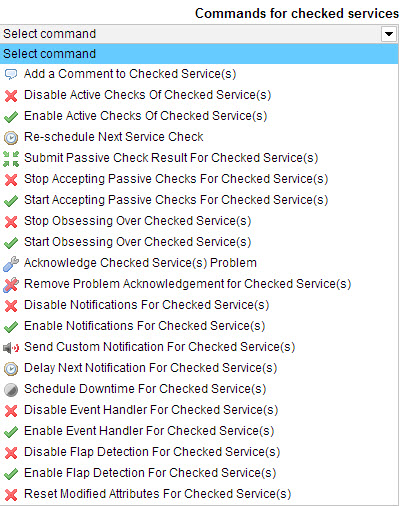
Icinga's web interface makes bulk options painless.

Icinga’s web interface makes bulk options painless.

But then something happened that changed everything for me in the scheme of monitoring. An ex-colleague and friend, suggested I take a look at “Icinga”.

Icinga is a fork of Nagios and is backward compatible. So, Nagios configurations, plugins and addons can all be used with Icinga. Though Icinga retains all the existing features of its predecessor, it builds on them to add many long awaited patches and features requested by the user community. – https://www.icinga.org/

The above paragraph from the front page of the Icinga website is when I started plans to install and evaluate. The usability experience is superior, native IPv6 support, IP-less host support, extended configuration options, fully documented API and most importantly a roadmap for future development!

Icinga Status Overview

The powerful and dynamic, open source infrastructure monitoring system I fell so in love with has been rejuvenated, boasts new features and plans on only getting better. If I’m asked what I use to monitor my servers – I now proudly tell people Icinga.

Icinga Network Monitoring ebook

New Icinga Network Monitoring e-book

Monitoring with Nagios and Icinga is something I have been intending to write about since 2009 but I’ve never been sure where to start. Which is why I was both delighted and honored to be asked by Packt Publishing to review a new book titled Icinga Network Monitoring. The book cover page has that stereotypical “Packt” type photograph and layout – completely unrelated to the book topic – but instantly recognisable as fantastic educational resources you see sitting around an office like mine. (I’ll ask them about the photographs and let you know.)

I’ve not read any books by the author Viranch Mehta before, but I can see his background in Linux, system administration and open source projects make him a notable authority on the topic of monitoring using Icinga.

I’ll be reviewing the Icinga Network Monitoring book this month and plan to release a review next month. If you can’t wait until then – you can download a free chapter (see “Sample Chapter”) and let me know your thoughts.

4 Comments

2 Reasons Why I Am rolling Back From Windows 8.1 to Windows 7

To be clear, this is a rant post from a frustrated IT professional charged with the maintenance and diagnosis of problems by disillusioned users.

This rant is based on a limited perspective that is my own. I do not expect every owner of Windows 8 or Windows 8.1 to share my experience nor am I attempting to influence your thoughts on the matter. Please by all means come to your own conclusions. That said if you share a similar view and want to contribute, please share your pain in comments below.

1. Microsoft fixed that which was not broken

I can understand perfectly Microsoft’s decision to have a unified and consistent interface experience when using their operating system – all platforms with one experience. That’s nice for them. Allow me to explain my perspective.

If I am using a tablet, mobile phone or even a computer with touch capability then I would judge, rate and expect “touch” to play a very core role in my user experience. If using touch input was difficult, poorly implemented or hindered my ability to use the device in a manner I, the user, deem normal – then it is a failure in my mind. Wouldn’t you agree?

Imagine I am using Windows Server 2012 (a server operating system) to administer an enterprise/corporate environment such as managing servers across WANs, updating middleware on remote application servers, setting up iSCSI targets to map to remote storage, distributed file replication, installing database servers, etc. Most of these tasks take place across slow internet links, via remote connections and/or VPN.

Zero of these tasks require touch input now and zero have needed it in the past. There is no reason I would compromise the performance of mission critical business servers or add to the expense of such servers by encouraging a redundant input method such as touch on my servers. It is a waste of resources and there is zero need for it in my mind. In perhaps a 0.1% of cases where it could be argued as useful – fine -“enable” that as an option. However I cannot comprehend why in the other 99.9% of cases, an administrator should have it forced upon, to use an interface not ever designed for use in such an environment.

Loading the start screen on an older server and/or on a slow connection means the entire screen needs to be rendered again and transmitted through the remote desktop connection. The old start menu required the render of a small segment in the bottom left corner of the screen while you searched / typed in what you wanted to load.

Let us consider opening notepad on a server. On Windows Server 2008 R2, press the Windows key on the keyboard or click the Start button, type “notep”, press Enter or click the result.

On Windows Server 2012 – the process is exactly the same – however the start screen displays over the top of applications the user was using in the background (access to view the task you were working on prior is now hidden), the amount of screen rendering is 100% and data sent back to the remote operator is slower.

Being forced to use a touch oriented user interface in an environment where it has no place to me is the same has having an environment that demands an excellent touch interface to use it effectively and none exists. If a typical input method became difficult, poorly implemented or hindered my ability to use the device in a manner I, the user, deem normal – then it is a failure in my mind.

The same argument for having “metro” on a server (as the extreme) is also relevant to the desktop workstation experience. So what, it’s a nice branding idea for Microsoft to have a consistent user experience across all devices? We as users have different devices for different purposes – we don’t necessarily need the same user experience across them all. Even if that logic fails you, why oh why would you force it “on” without the ability to turn it off!?

Windows 8 plus has some very nice features that I enjoy using. But it is needlessly more difficult to use in subtle ways that reflect negatively on my once easy user experience. I may as well install Ubuntu or another linux distribution now. The Zen balance has been offset. Finally, they had the chance to not force it on users, to bring back a start menu (not just a button) in Windows 8.1 – and they chose not to.

This is reason 1 for rolling back to Windows 7.

2. Microsoft removed functionality

Have you tried to get some sort of information about a network connection on Windows 8+ at all? Managing new and existing network connections (including wifi) is now harder. Microsoft had a working interface for managing wireless and took it away. Microsoft removed functionality from the Network and Sharing Center such as changing the connection firewall profile. Of course there’s more.

For example, you’re connecting to a new wifi network which requires certificate authentication. You have the certificate installed and ready to use, you simply need to modify the wireless connection profile. You click on the network icon and can see the wifi network in the list of wifi networks nearby. You attempt to connect to it but it fails – as you would expect. You now right mouse click on it to modify the wifi connection profile to use certificate authentication but nothing happens – but suddenly you remember you’ve installed Windows 8 plus. In Windows 8+, you cannot modify a connection profile until you’ve connected to it successfully. Which is difficult because you need to modify the connection profile to connect to it?

So what to do? Microsoft’s recommendation is you use their easy to use command line tools. But then you remember you paid a ridiculous sum of money so you and your users could use a graphical user interface, not an OS where the manufacturer forgot to implement a usable interface.

Because Microsoft deleted the interface you need from Windows 8 plus, the other option is to download a third party app that does something similar but no where near the same.

But wait, you’re not an administrator and cannot install new unsigned applications.

So instead you sigh, open control panel, open Network and Sharing Center, click “Set up a net connection or network”, select wifi, manually type in the wifi SSID, enter other relevant settings as required, save, now click on the network icon, right mouse click on the network, click view properties, make changes to the advanced settings and click OK.

You try to connect again but it fails. You then realised that because you had to manually type the SSID instead of Windows doing it’s job, you’ve made a typo. You try to right mouse click on the network connections from the list – but you’ve not yet connected to it successfully so you can’t! You are now forced to delete the connection you added manually and repeat the above procedure again without error.

It’s a pathetic joke and a massive failure on Microsoft’s behalf. I’m pretty sure lesson one is never ever intentionally remove a working user interface that every user is accustomed to using from a critical piece of functionality!

This is reason 2 for rolling back to Windows 7.

Leave a comment

Google Chrome and NTLM Auto Login Using Windows Authentication

Please let me disclaim that there are other posts out there with the same information as I’m about to present, but I’ve had to find this multiple times now and it’s always been a struggle to find. If of no use to anyone else, this is for my own selfish ease of access.

Scenario

  • You operate a web server or other services (such as Exchange Client Access Role, Sharepoint [yuk!], etc.)
  • To access the website or service (herein referred to as a service) the user needs to be authenticated with their Windows [Active Directory Domain] credentials
  • The web server has the required “features” installed, the authentication Windows Authentication method has been enabled and Anonymous Authentication method disabled via Internet Information Systems (IIS) on either the server, site, folder or file level
  • The expectation is the user browses to https://system.sysadminspot.com/ which accepts this method of authentication
  • The user is prompted to enter their Windows authentication credentials – that is, they are NOT detected and automatically logged in, but they must type their credentials into the prompt.

The last line in bold is what I will be addressing in this post.

Firstly, regardless of the browser you are using (Internet Explorer, Google Chrome or Firefox) there are default security settings in place to prohibit the automatic “single sign-on” or NTML authentication via the browser. Most browsers insist you enable this at the browser level and/or define a trusted list of hostnames where this is permitted.

Internet Explorer (IE)

IE gets it’s settings from the operating system “Internet Settings”. Typically accessed via the Tools > Internet Options from within the browser or Control Panel > Internet Options.

Internet options securityWebsites are broken down into zones – internet, local intranet, trusted sites and restricted sites. By default, the local intranet zone has the User Authentication > Logon > Automatic logon only in Intranet zone (accessible via custom settings).

This means that unless IE detects you’re browsing a website within your own network with a local IP address – automatic login will not work and the user will be prompted to type in their credentials.

Generally speaking, this is a good settings. But in some cases, organisations have complex setups which will not fall into this category. What needs to be realised however is this is the default behaviour.

Don’t worry, it is changeable – however I caution you that you do it properly – such as via a group policy change, etc to avoid user confusion (i.e. works on one computer but not another).

Suggested Workaround

Internet options user authenticationMy recommendation is to add services that are outside of the local intranet to the trusted sites zone sites list. Then hit custom level, scroll right to the bottom and change User Authentication > Logon > Automatic logon with current user name and password.

Setup internet options trusted sites list

A Point of Order

A gentle reminder that if the user attempts to access a new service that is NOT listed in local intranet or trusted sites – then they are obviously going to be prompted to enter their credentials! This includes going to https://system/ instead of https://system.sysadminspot.com/ – they are different hostnames. If you need both to work – add both!

You must keep the list of permitted sites up to date or make this setting on the internet zone (not recommended).

Google Chrome

You’ll note this blog post is actually about Google Chrome and not Internet Explorer. So why have I gone into so much detail about IE?

Google Chrome actually utilises the same settings that IE uses – that is the Control Panel > Internet Options settings as discussed in the Internet Explorer section above.

Thank you KaPes (last post on the page) for your helpful forum post on the Google product forums.

Mozilla Firefox

I really can’t do a better job on describing how to do this in Firefox than some of the other brilliant posts out there. I’ve linked to a few I found accurate and likely to be useful to you.

14 Comments